From your first camp to a well-worn journal
Five minutes is all you need. Can't find an answer? We're at support@tentory.app.
1 | Getting started
- Sign up or log in with email, or continue with Google / Apple.
- Verify your email (email sign-ups): tap the link in your inbox. Marketplace publishing and AI journal drafting require a verified email.
- Create your camper card: pick a nickname and avatar on first launch — other campers find you by nickname. You can change both anytime in Settings.
The five bottom tabs: Journey (dashboard & footprint), Records, Explore, Market, and Gear.
2 | Recording a trip
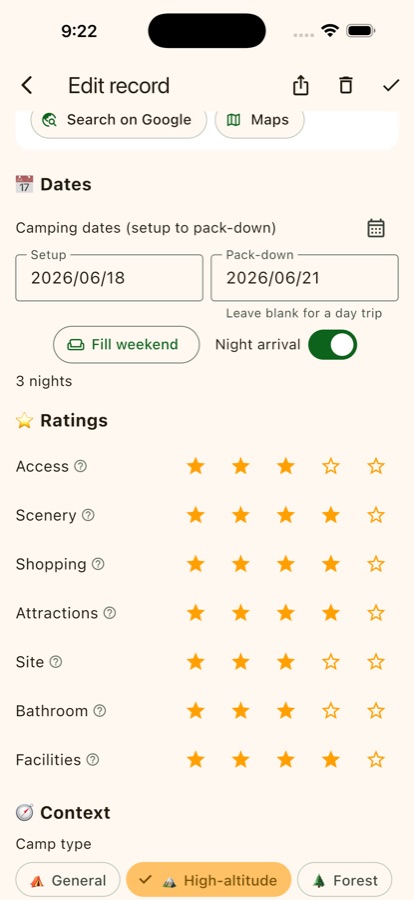
- On the Records tab, tap +. Search for the campground (or add it if it's missing) and set your pitch and pack-up dates. Leave pack-up empty for a day trip.
- Seven separate ratings: access, scenery, supplies, surroundings, site, bathrooms, and facilities — each with rating hints. In a hurry? Skip them and come back later.
- Add weather, site type, camping style, companions, and tick this trip's perks and highlights.
- Story and photos: write your notes (or let AI draft from your ratings, then make it yours) and add photos. Photos are screened automatically before they can appear publicly.
- For trips you haven't taken yet, use Add booking — it shows a countdown in the Upcoming tab, and you fill in ratings and photos afterwards.
Every record starts visible only to you; share one by setting it to friends-only or public, trip by trip.
Companions

 +
+
One person books, the whole crew knows
When creating a booking, add your mutual followers as companions — once they tap Accept, the trip appears in their own Upcoming tab with the same countdown and campground. No more screenshotting plans into group chats.
1Book & invite
Songling Camp
Sat 9/20 – Sun 9/21 · 1 night
+
Tick mutual followers under Companions
2Friends get the card
Yun invited you
Songling · 9/20
AcceptDecline
The invite card shows up right in their Records tab
3Accepted = synced
Upcoming
Songling Camp
D-12
One shared countdown — see who's in at a glance
3 | Gear and the packing checklist
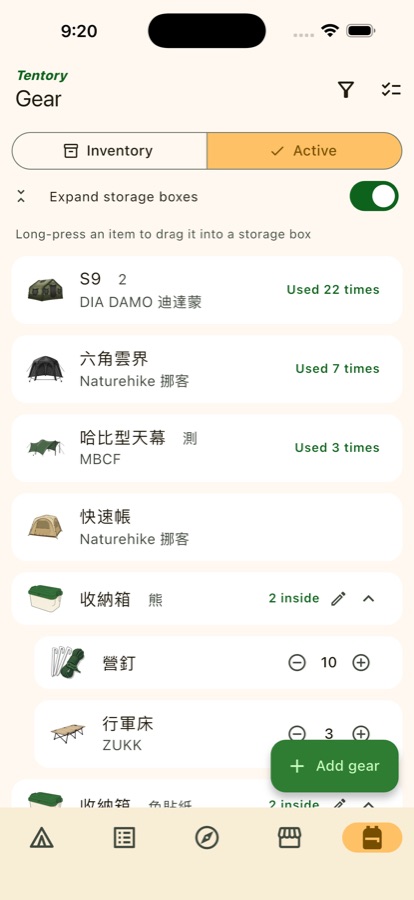
- Add tents, tarps, and everything else on the Gear tab, with category, brand, and an icon (picking an icon auto-fills the name).
- Storage boxes: long-press any item to drag it into a box, so you always know what's packed where.
- Pre-departure checklist: tick items off before you leave — no more discovering the mallet is missing at the campsite. Gear you don't bring every time can live in the Stock tab, which stays off the checklist.
- Tick the tent you used in each record and Tentory counts every tent's trips automatically.
4 | Footprints, badges, and memories
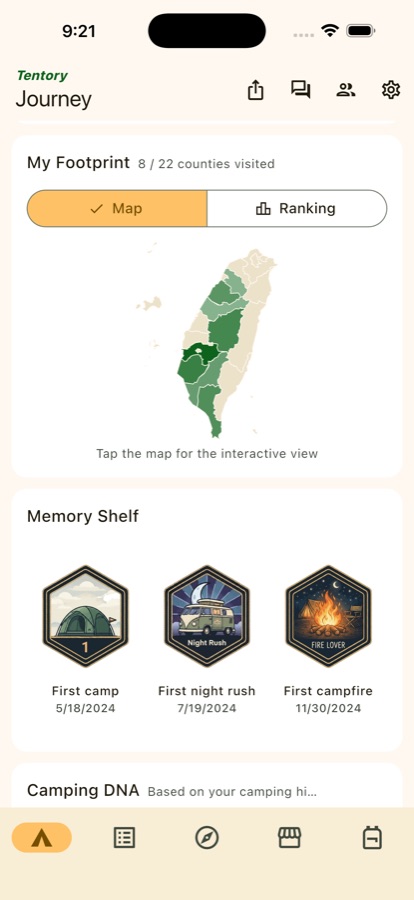
- The Journey tab is your dashboard: camping stats, camper level, and the countdown to your next trip.
- Light-up map: every new county you camp in lights up one more piece of your map of Taiwan. Tap it for the interactive version with per-county visit counts.
- Badges unlock automatically from your records — campfires, night arrivals, rainy camps, all four seasons, and more.
- The memory shelf collects your memorable firsts, Camping DNA analyzes the campground types and styles you gravitate toward, and the year in review wraps up your camping year.
FAQ
Where does the campground data come from?
Some campground base data is sourced from the Tourism Administration's "Taiwan Campgrounds" open dataset (data.gov.tw), used under the Open Government Data License v1.0; other campgrounds are user-created. Information is for reference only — always check with the campground for current status. Campground operators may contact support@tentory.app for corrections or removal.
Can't find your usual campground?
Search by name when picking a campground; if there's no match, choose the county and tap "Add" to create it. New campgrounds appear in public search after verification — your own records work fully in the meantime.
What does AI drafting send?
Only when you tap "Draft for me" are this record's campground, dates, weather, ratings, and highlight tags sent to generate a draft — a consent screen lists everything before first use. Skip the feature and nothing is ever sent.
More questions?
See the homepage FAQ (availability, free quotas, privacy, account deletion) or email support@tentory.app.
5 | Explore, campers, and the market